Toolkit Edit Page Reference
The toolkit edit page is where you configure what a toolkit contains. Open it by selecting a toolkit row, or Edit from its row menu, on the Build > Toolkits list.
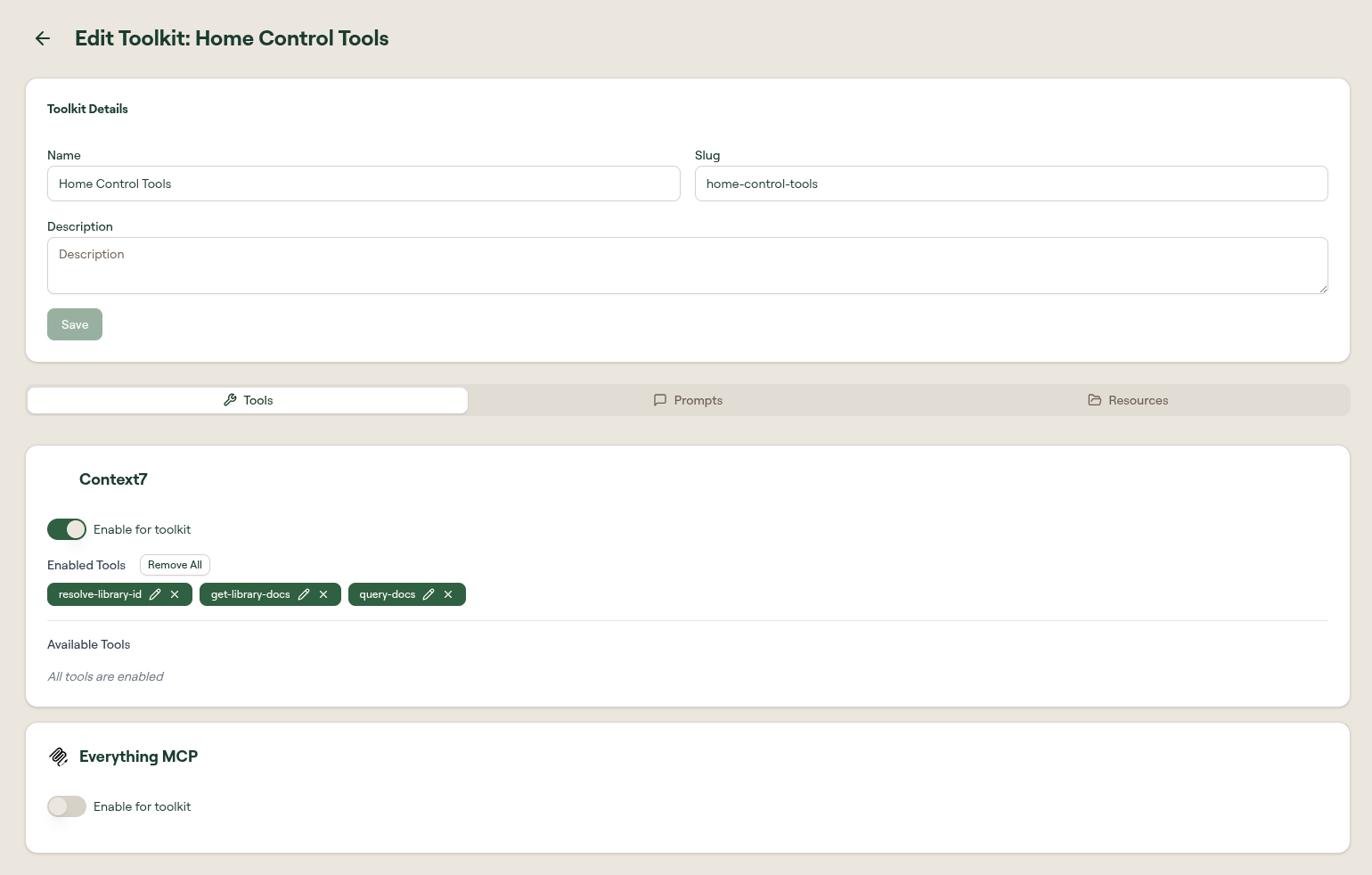
At the top is a details form. Below it are three tabs: Tools, Prompts, and Resources.
Details form
| Field | Description |
|---|---|
| Name | Display name of the toolkit. |
| Slug | URL-safe identifier. Set at creation and used in the toolkit's connection URL. |
| Description | What the toolkit is for. Shown in the list and to users. |
Select Save to persist changes to the details form.
Tools tab
The Tools tab is organized by MCP server. Its tab label shows how many tools the toolkit includes, for example Tools (3).
A summary at the top counts the MCP servers in the toolkit, the enabled tools and how many of them are accessible to all groups, and the groups the toolkit is assigned to. Beside it are a Search added MCPs box and an Add MCP button for bringing another server's tools into the toolkit.
Below the summary, each added server has its own card showing how many of its tools are enabled (for example, 3 / 3 tools). When a toolkit references a tool that is no longer available, the tab shows an empty or unavailable state for it.
Prompts tab
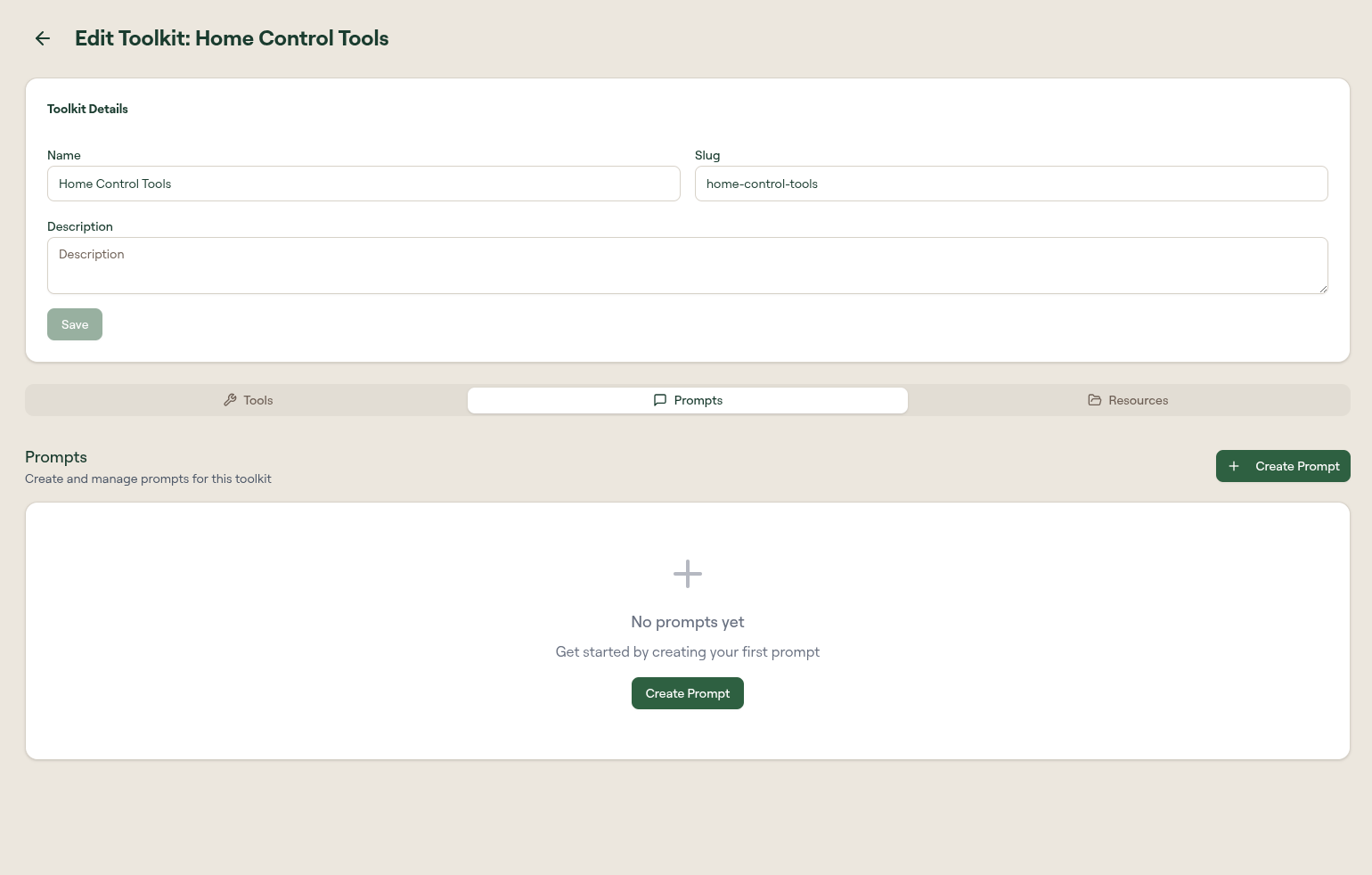
Prompts are reusable instruction templates scoped to the toolkit. When a client connects using the toolkit URL, these prompts are available as context. The tab shows an empty state with a Create Prompt button when none exist.
Select Create Prompt to open the prompt form:
| Field | Description |
|---|---|
| Name | Display name of the prompt. |
| Slug | URL-safe identifier. |
| Description | What the prompt does. |
| Arguments | Optional typed inputs. Each argument has a name, a description, and a required flag. Select Add Argument to add more. |
| Output Content | The prompt body. Argument values are substituted when the prompt runs. |
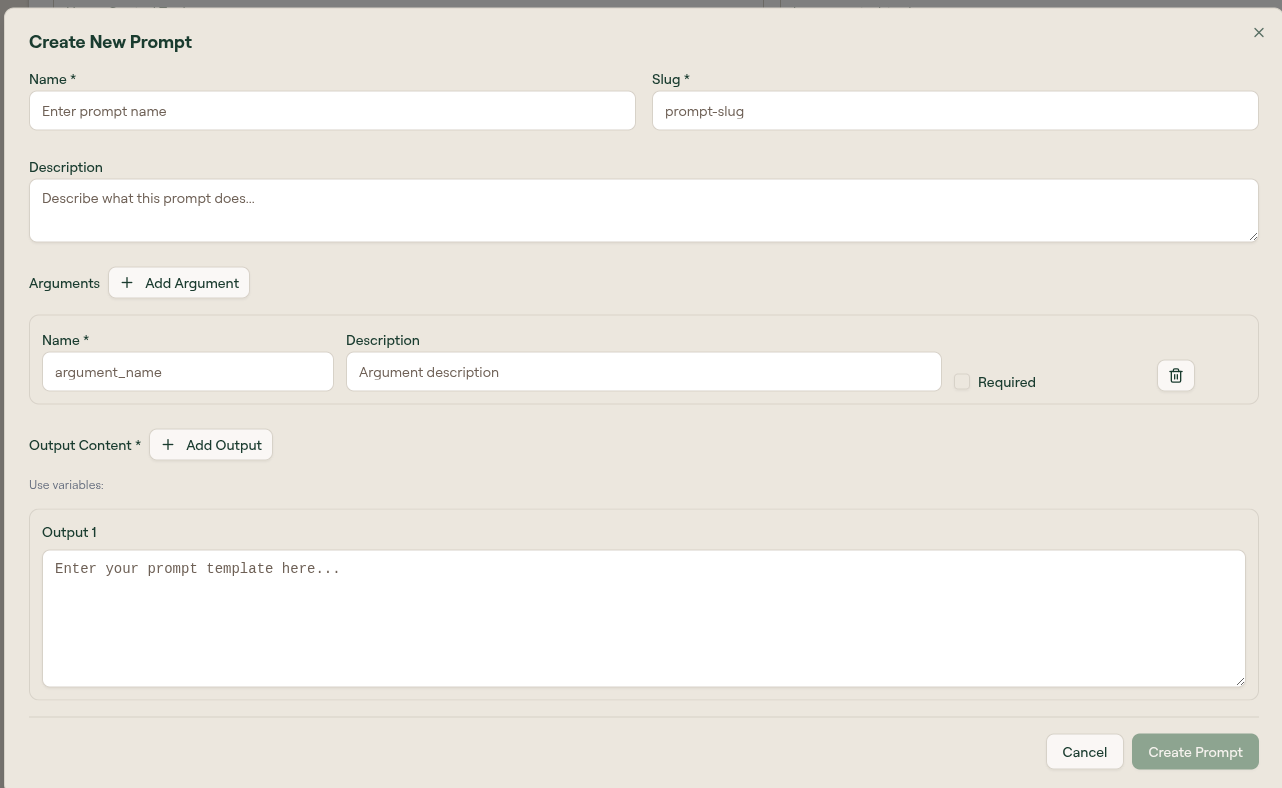
Select Create Prompt to save it.
Resources tab
Resources are reference content scoped to the toolkit: schemas, style guides, data dictionaries, or anything the AI should be able to read during the workflow. The tab shows an empty state with a Create Resource button when none exist.
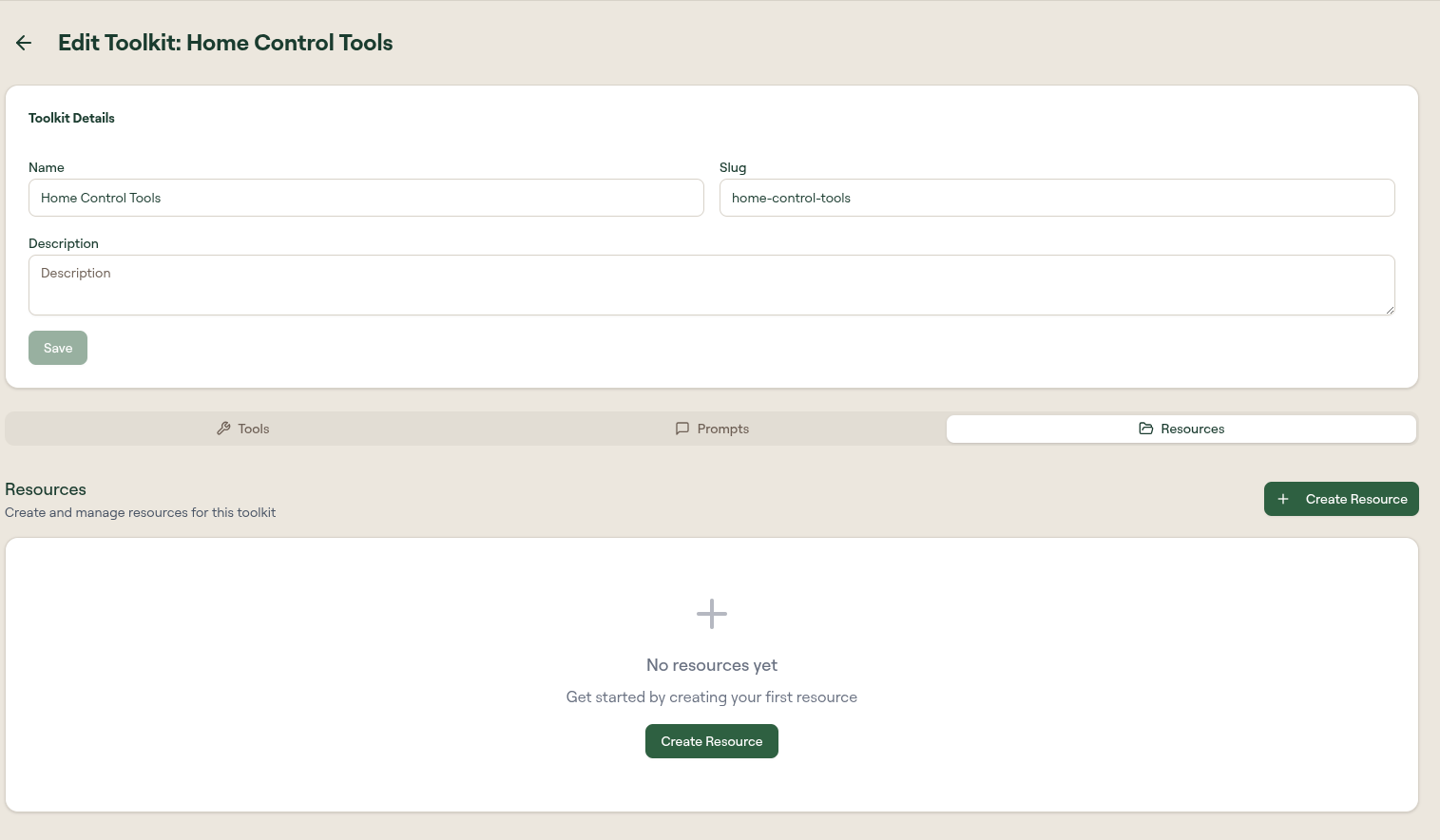
Select Create Resource to open the resource form:
| Field | Description |
|---|---|
| Name | Display name of the resource. |
| Slug | URL-safe identifier. |
| Description | What the resource contains. |
| Content | The resource body. Markdown is supported, with a live preview panel beside the field. |
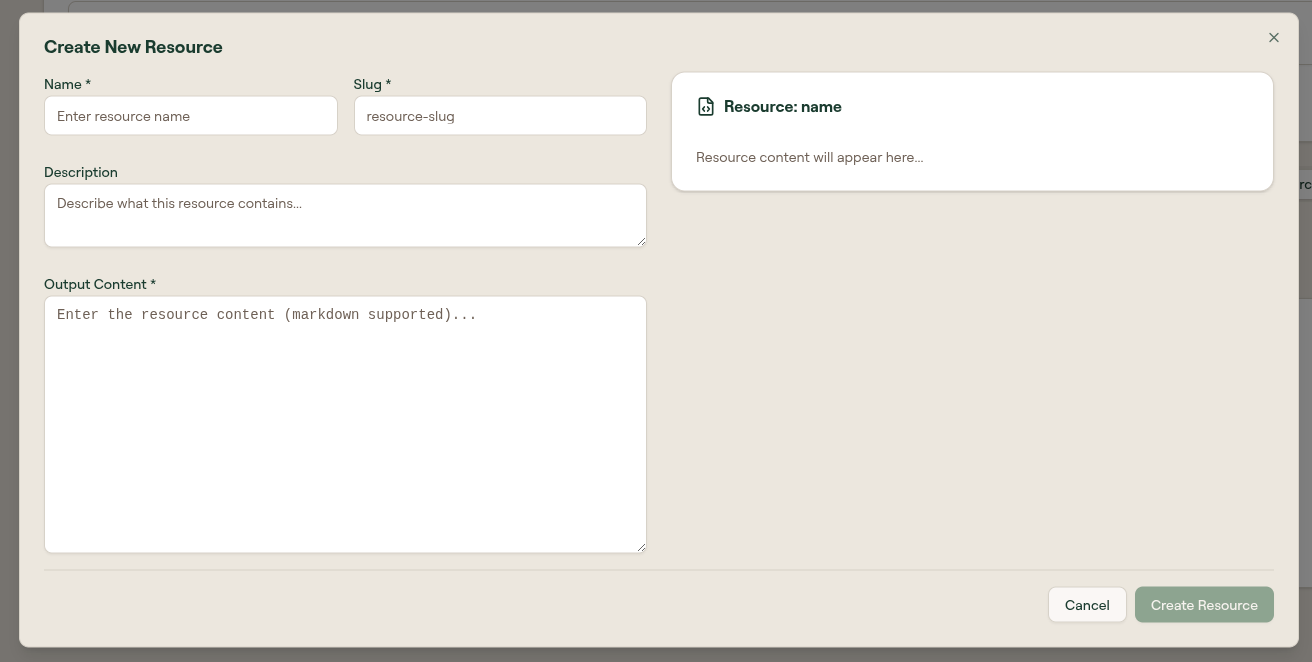
Select Create Resource to save it.
What to do next
- Create a Toolkit: the full creation walkthrough
- Toolkits: list columns, scopes, and row actions
- Wrap a toolkit in a plugin for marketplace distribution