Configure JumpCloud
Set up JumpCloud as your identity provider using a Custom OIDC App.
Before you start, find your callback URL on the Configure SSO page: {gatewayUrl}/api/auth/callback/jumpcloud.
Create a Custom OIDC App in JumpCloud
- In the JumpCloud Admin Portal, go to Access → SSO Applications
- Select + Add New Application → search for
OIDC→ select Custom OIDC App → Next - Under General Info, set a Display Label (e.g. "Willow")
- Select Configure Application, then open the SSO tab
- Configure:
- Grant Types: leave Authorization Code checked
- Redirect URIs:
{gatewayUrl}/api/auth/callback/jumpcloud - Client Authentication Type: Client Secret Basic
- Login URL: your Willow dashboard URL
- Ensure Email and Profile standard scopes are selected under Attribute Mapping
- Select Activate. JumpCloud displays the Client ID and Client Secret once, copy both immediately
For more details, see JumpCloud's guide to SSO with OIDC.
Finish in Willow
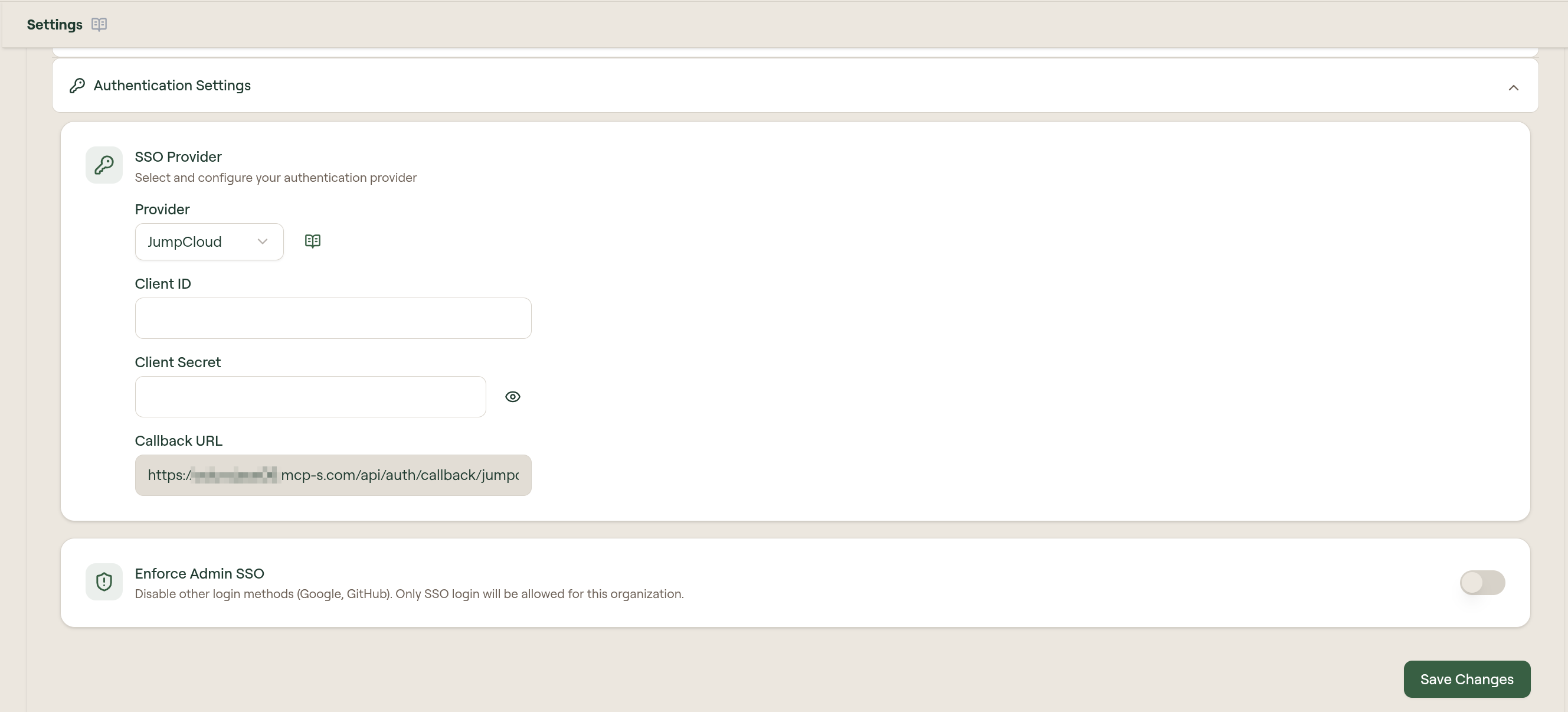
- Go to Admin → Settings → Authentication Settings
- On the SSO Provider card, select Edit
- Select Provider: JumpCloud
- Enter the Client ID and Client Secret
- Select Save
Use JumpCloud for admin login on-prem
On an on-prem deployment, JumpCloud isn't set through the AUTH_PROVIDER variables on the app deployment. The admin app uses the organization's SSO settings instead:
- Leave
AUTH_PROVIDERunset on theappdeployment, and sign in with the built-in On-Prem Admin login - Create the Custom OIDC App above with the redirect URI
https://willow-dashboard.<domain>/api/auth/callback/jumpcloud - Complete Finish in Willow
- Turn on Enforce Admin SSO in Authentication Settings, and stay signed in. Turning it on doesn't sign out existing sessions
- Have another admin sign in through JumpCloud, or test in a private browser window. From then on, admin login goes through JumpCloud
- If the test sign-in fails, turn Enforce Admin SSO off from your open session, fix the JumpCloud settings, and try again
Set DISABLE_ADMIN_SSO on the app deployment and redeploy. The admin login page shows the On-Prem Admin sign-in again so you can fix the settings:
deployments:
  app:
    env:
      DISABLE_ADMIN_SSO: "true"
Remove the variable once JumpCloud sign-in works. While it's set, admin login has no SSO in front of it, so keep the admin hostname network-restricted.
Assign users or groups
In the JumpCloud Admin Portal, open the Willow application → User Groups tab → assign the groups that should have access.
After SSO is working, configure SCIM provisioning to automate user and group lifecycle management between JumpCloud and Willow. When SCIM is active, JumpCloud creates, updates, and deprovisions users and groups automatically. See SCIM Provisioning with JumpCloud for step-by-step instructions.