Configure Entra ID
Set up Microsoft Entra ID (formerly Azure AD) as your identity provider.
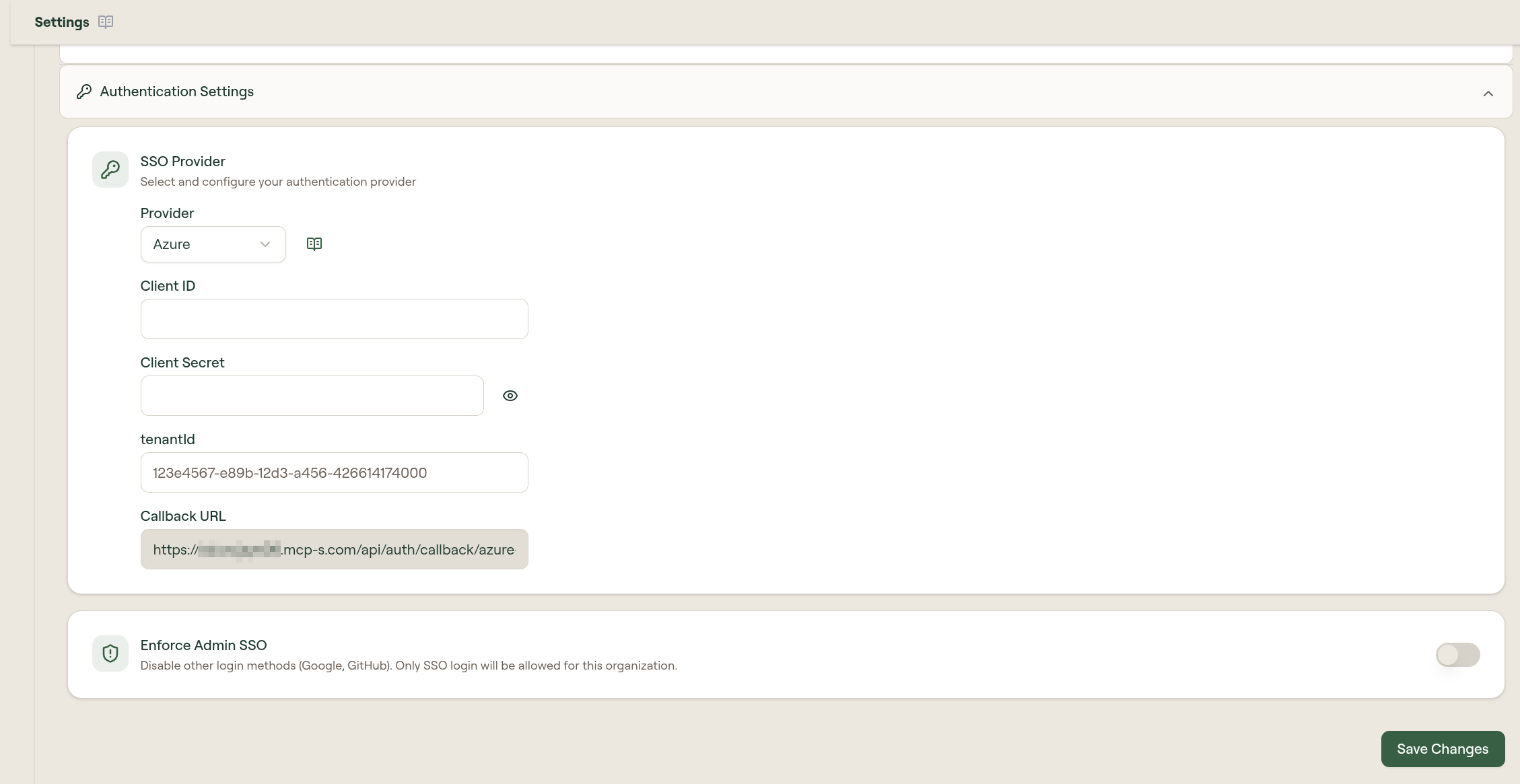
Before you start, find your callback URL on the Configure SSO page: {gatewayUrl}/api/auth/callback/azure-ad.
Register an app in Entra
- In the Microsoft Entra admin center (or the Azure Portal), go to App registrations → New registration
- Enter a name (e.g. "Willow Integration")
- Under Supported account types, select Accounts in this organizational directory only (Single tenant)
- Add a Redirect URI (web):
{gatewayUrl}/api/auth/callback/azure-ad - Select Register, then copy the Application (client) ID and Directory (tenant) ID
- Go to Certificates & secrets and create a Client secret and copy the value immediately
For more details, see Microsoft's guide to registering an application in the Microsoft identity platform.
Finish in Willow
- Go to Admin → Settings → Authentication Settings
- On the SSO Provider card, select Edit
- Select Provider: Entra
- Enter the Client ID, Client Secret, and tenantId
- Select Save