Google Workspace
Google Workspace is a suite of productivity tools developed by Google, including Drive, Docs, Sheets, Slides, and more.
Authentication Types
Google Workspace supports 3 authentication methods:
-
OAuth - Create your own Google Cloud OAuth app. Every user connects with their Google account.
- Pros: Full control, per-user tracking, production-ready
- Cons: Requires Google Cloud Console setup
-
Instant OAuth - Use Willow's pre-configured Google app for the fastest setup.
- Pros: Fastest setup, no configuration needed
- Cons: Limited scopes, not recommended for production
-
Server App - Use a Google Cloud service account for server-to-server authentication.
- Pros: No user interaction needed, good for automated workflows
- Cons: More complex setup, requires domain-wide delegation for accessing user data
Setting up OAuth
-
Create a new project or select an existing one
-
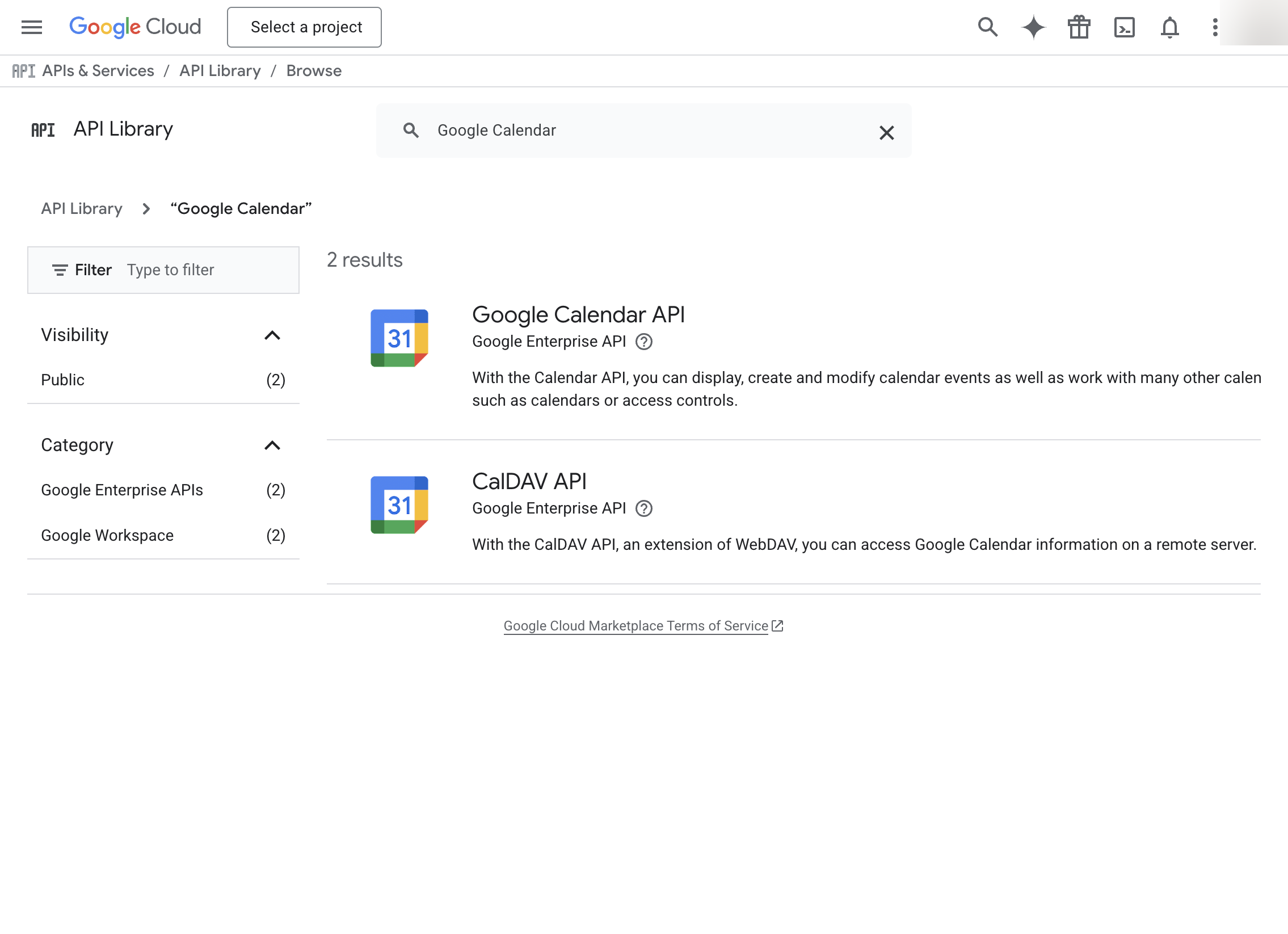
Go to APIs & Services → Library and enable the APIs you need:
- Google Drive API
- Google Docs API
- Google Sheets API
- Google Slides API
-
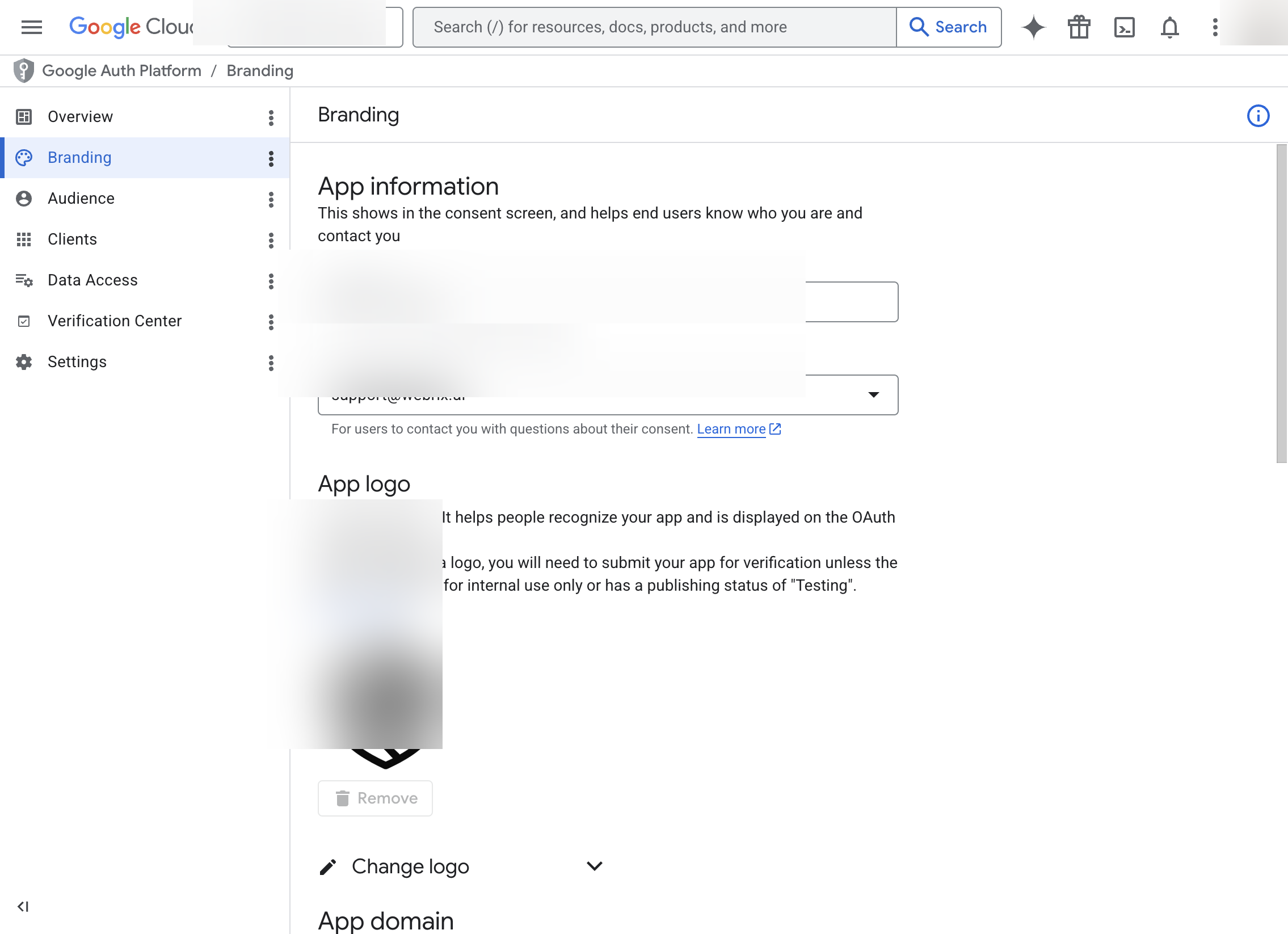
In the left sidebar, go to APIs & Services → OAuth consent screen
-
Configure your OAuth consent screen with the required information
-
On the Scopes page, add the scopes you need:
https://www.googleapis.com/auth/drive(Drive)https://www.googleapis.com/auth/documents(Docs)https://www.googleapis.com/auth/spreadsheets(Sheets)https://www.googleapis.com/auth/presentations(Slides)
-
Go to APIs & Services → Credentials
-
Click Create Credentials → OAuth client ID
-
Select Web application
-
Under Authorized redirect URIs, add:
- For SaaS deployments:
https://{org}.mcp-s.com/{org}/api/auth/callback - For On-Premise deployments:
{connectUrl}/{org}/api/auth/callback
- For SaaS deployments:
-
Click Create
-
Copy the Client ID and Client Secret
-
In Willow, paste the Client ID and Client Secret
-
Select the same scopes you configured
-
Click Save Changes
Setting up a Server App (Service Account)
-
Go to APIs & Services → Credentials
-
Click Create Credentials → Service account
-
Enter a Service account name and click Create and Continue
-
Click Done
-
Click on the created service account
-
Go to the Keys tab
-
Click Add Key → Create new key → JSON
-
Save the downloaded JSON key file
-
In Willow, upload or paste the service account JSON key
-
Enable Domain-wide delegation for the service account:
- In the service account details, check Enable Google Workspace Domain-wide Delegation
- Go to Google Workspace Admin Console
- Navigate to Security → API controls → Domain-wide delegation
- Add the service account Client ID with the required scopes
-
Configure the scopes and subject (user to impersonate) in Willow
Note: If setting up a Service Account without first going through the OAuth flow above, make sure to enable the required Google Workspace APIs (Drive, Docs, Sheets, Slides) in APIs & Services → Library.