Willow for Slack
Willow lets your AI assistants work with Slack safely. Claude, ChatGPT, Cursor and your in-house agents connect to Slack through Willow, and every request runs as the signed-in user, follows your admins' policies, and is recorded in an audit log.
The problem it solves
People want their AI assistant to answer "What did we decide about the Q3 launch?" or "Post a summary in #release". Connecting each assistant to Slack separately means a different token per tool, no central control over what the AI can do, and no record of what it did. Willow gives the whole organization one governed connection to Slack instead.
What the Slack app does
Once a user connects their Slack account, their AI assistant can, on their request:
- Search messages, files and people with Slack's Real-time Search API, using keyword search and, where available, semantic search for natural-language questions
- Read a specific thread or the recent messages in a specific channel or DM the user asks about
- Post a message, reply in a thread, edit, schedule or draft a message as the user
- Look up people by name or email, open DMs, and add reactions
- Work with channels, canvases, lists, files, bookmarks, pins and reminders
Everything happens as the user who connected, so the assistant can only see and do what that user can already see and do in Slack. Willow does not bulk-export or index your workspace: each call is a targeted lookup triggered by a user's request.
Semantic search requires a Slack Business+ or Enterprise+ plan. On other plans, search uses keyword matching.
Built for admins
- Choose which Slack actions are allowed, for example read-only access, or block specific channels
- Restrict access by group with your SSO identity provider
- Review every Slack action your organization's AI assistants take in Willow's audit log
How to install
Slack is installed from inside Willow, so there is no "Add to Slack" button on this page. The Slack authorization screen opens when a user connects.
If you are a Willow admin:
- Sign up for Willow with your work email, or sign in to your organization's Willow dashboard.
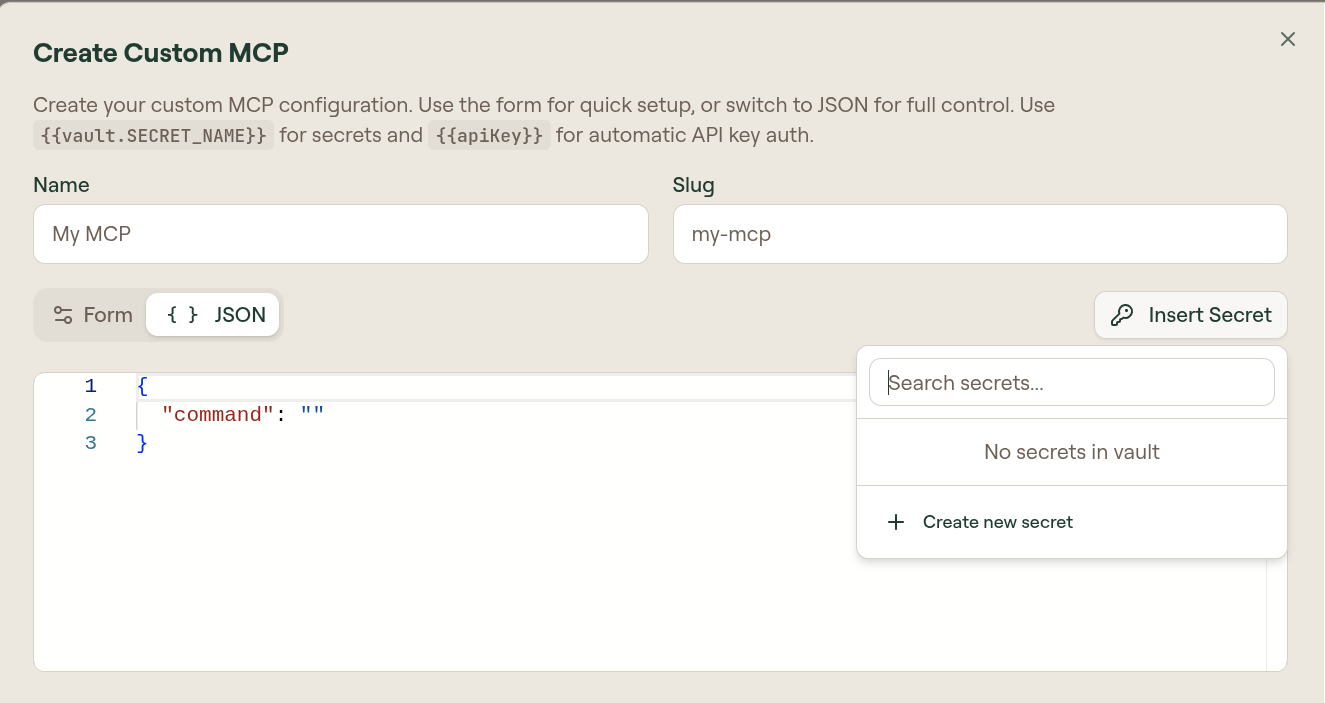
- Open Build > MCP Servers and select Add MCP Server.
- Search for Slack, hover over the card and select Use, then select Create.
- On the Slack server's Setup tab, choose Instant OAuth and save. This uses the Willow Slack app, so there is nothing to configure.
- Give a group access to the Slack server, for example Admins for a first test.
If you are a user:
- Sign in to your organization's Willow portal.
- Under Discover MCP Servers, find Slack and select Connect.
- Slack opens its authorization screen for the Willow app. Review the permissions and select Allow.
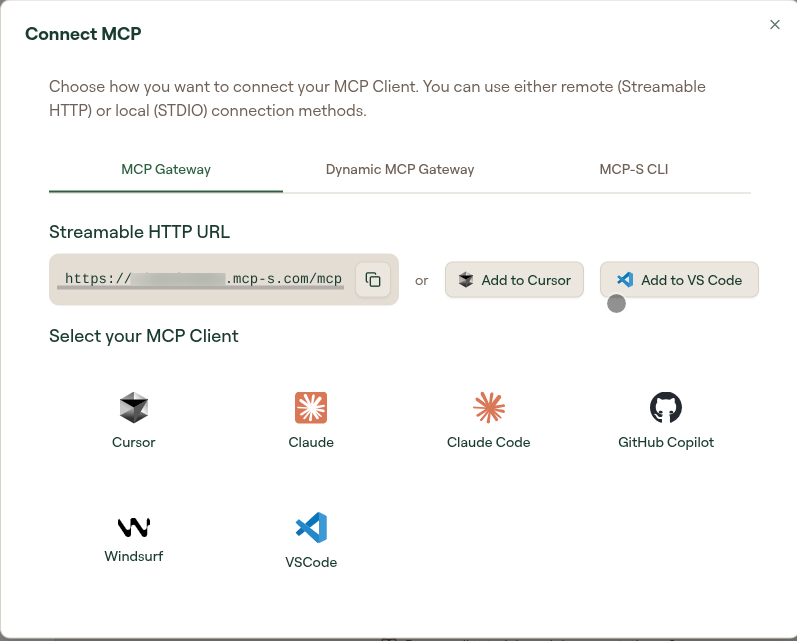
- Select Connect MCP at the bottom of the left sidebar, choose your AI client, and follow the steps shown to add the Willow connection URL to it.
- Ask your AI assistant something about Slack, for example "Find the latest messages about the Q3 launch".
To remove access, disconnect Slack in the Willow portal, or remove the Willow app from your Slack workspace in Slack's app management settings.
Pricing
- Free: $0, with no card required. Up to 15 users and 15 integrations, including Slack.
- Enterprise: contact us for a quote. Adds SSO and SCIM provisioning, action-level permissions, runtime guardrails, self-hosted deployment, SIEM log streaming and priority support.
See withwillow.ai/pricing for the full plan details.
Privacy and support
- Privacy policy: withwillow.ai/privacy-policy
- Security and compliance: Willow Trust Center
- Support: support@withwillow.ai or withwillow.ai/contact
- Full Slack connector reference for admins: Slack connector docs